
With thanks to feedback from you, the members, we are excited to transition from AMICCUS Social to a communication platform we believe will better suit your needs and address many of the concerns you shared with us. After considering several options, we are pleased to announce we will be moving to a WhatsApp Community.
Here are just a few of the key features we're really excited about:
One Community, Many Chats
If you've never used WhatsApp, you can think of it as a more powerful group text/chat application, with features like file sharing included. In a WhatsApp community, we'll have several topic-based real time group chats, including region-specific chats, a GM/ED chat, and chats for Finance, HR, Governance, Marketing and many more.
Never Miss Important AMICCUS-C Notes
Completely Customizable
Safe and Secure
Separate Personal and Work Accounts
Getting Started
Getting Started
If you have been invited to our AMICCUS-C community, or have access to the join link, you're ready to get started. If you do not have an invite or the join link, please reach out to Jordan to get you added (the link is not on this page to reduce spam).
Step 1 - Ensure you have WhatsApp downloaded on your phone. If you don't yet have it, if will be a free download from the App or Play store. If you are new to WhatsApp, or have never set your name, click on the "Settings" or "You" tab on the bottom right of the app, and set your name as you'd like it to appear. This is the name that will appear for folks who do not have you added as a contact. Video walkthrough: https://www.youtube.com/watch?v=B7exuPX5LC8
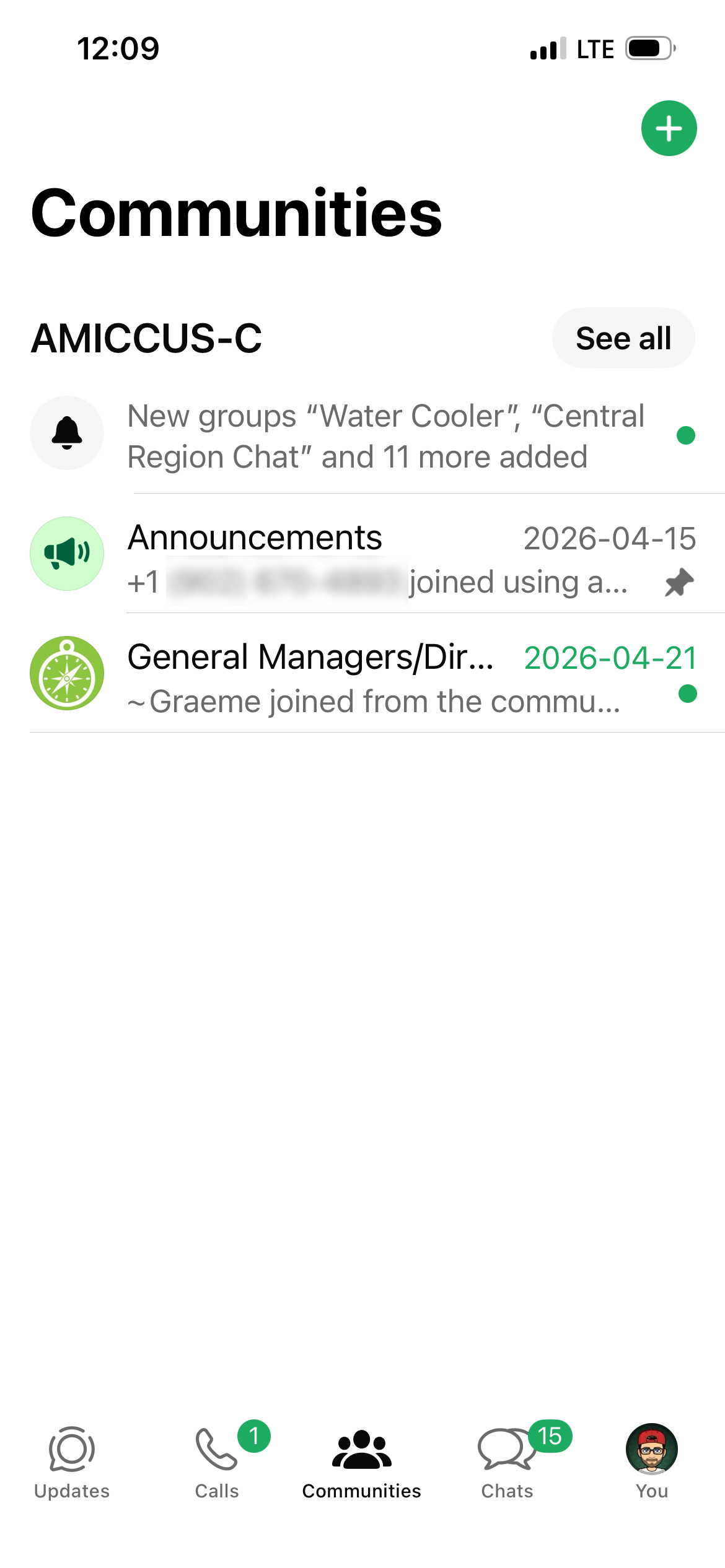
Step 2 - If you were invited directly, you should be added to the community automatically, and you'll see this when launching the app. If you're joining from our invite link, click the link and WhatsApp should open and welcome you to the AMICCUS-C community.
Step 3 - The "Communities" tab should be at the bottom middle of your screen, and clicking "See All" beside the AMICCUS-C name will show all available chats. By default, the only chat you're in is the Announcements chat, which is for AMICCUSC-C to send important updates. You can choose what other chats you would like to join; all chats are public except the General Managers/Directors chat which does require approval.
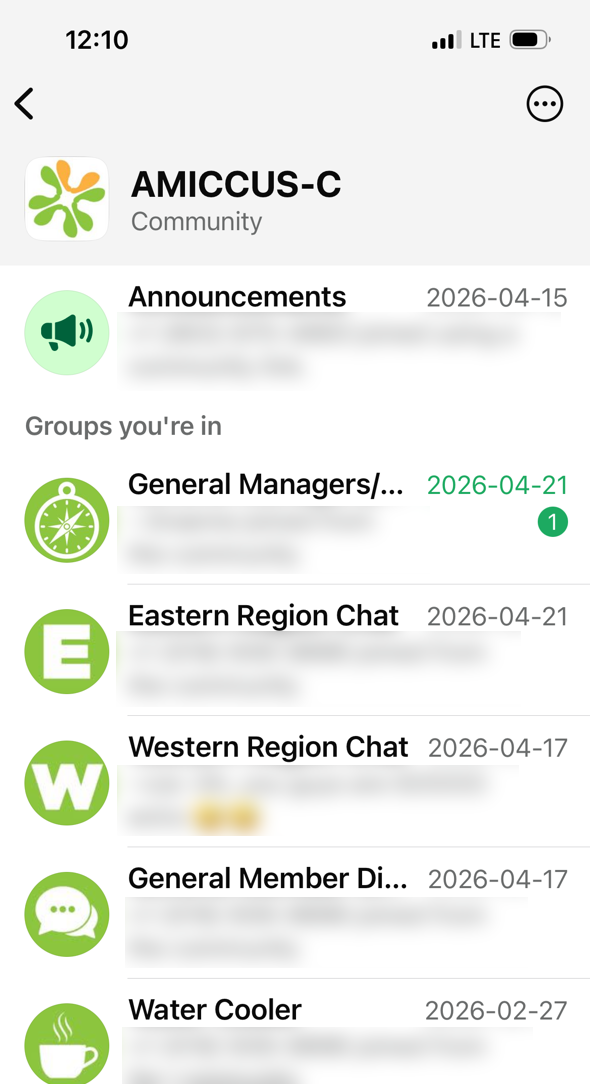
Step 4 - We strongly suggest setting your member tag, using our suggested format of Position | Association | City (Region), to help provide more context for fellow members about who a message is from.
Example: ED | SARDP | Red Deer (W)
This unfortunately does need to be set for each chat you join, but only needs to be done once and helps ensure folks know who is sending each message.
To add a member tag (on a phone), click on the group name at the top of the screen, scroll down to members and under your name you can add it.
To add a member tag (on a computer), click the three dots at the top right of the screen, scroll down to members and under your name you can add it.
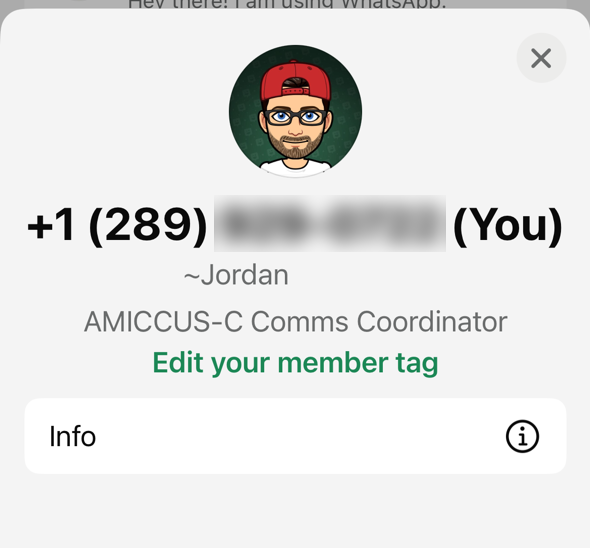
Step 5 - Last, but not least, are notifications. You can choose to turn on or off notifications for all chats in the main "Settings" or "You" section. You can read more in that WhatsApp help section.
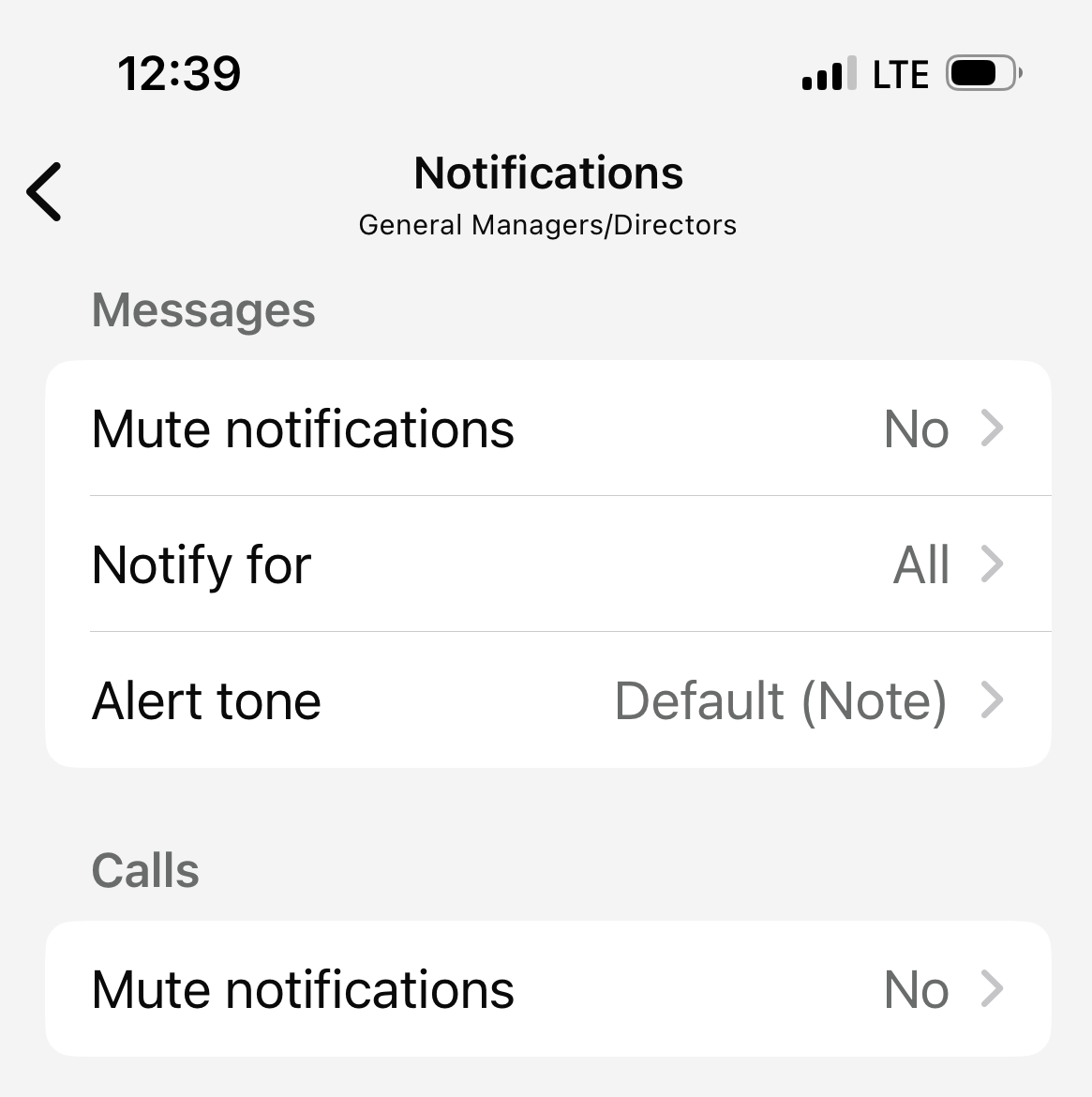
You can also have notifications for some chats, and not others. When you're in any of the chats within our community, you can access settings for that specific group by either clicking on the chat name at the top of the screen OR the three dots button at the top right of the chat. Once here, you can choose notification settings that are specific to this particular chat.
Pro Tip - While WhatsApp works perfectly fine on a phone, some folks find it much easier to use on a computer, and getting set up is easy. All you need to do is visit https://web.whatsapp.com/ and link your account. Typically, all this requires is scanning a QR code on this page. In WhatsApp on your phone, click "You" or "Settings" at the bottom right and choose "Link A Device". More information can be found here on WhatsApp official FAQ website.